Before you start
- Use paper supported by the exact model. This procedure covers ordinary front-tray loading, not envelopes or a claimed capacity for every paper type.
Step 1:Open the front tray and prepare the stack
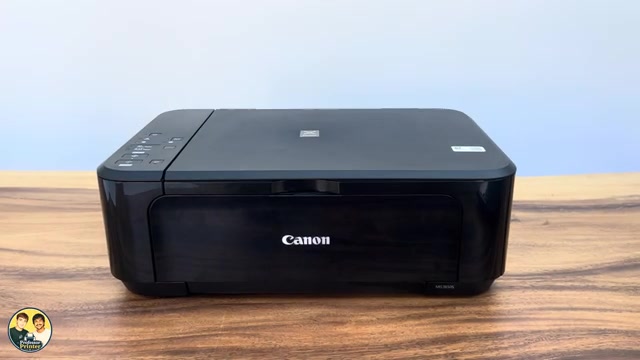
- Open the front cover and extend the paper support.
- Align the paper edges and flatten curled sheets before loading. Keep one size/type in the stack.
- Slide the right paper guide outward. The two guides move together; do not try to force one independently.
Step 2:Load the printable side down
- Place the stack centrally in portrait orientation, with its printable side facing down. Push it to the back of the front tray.
- Move the right guide until both guides meet the paper edges. Keep the stack flat and the guides snug, not tight enough to bend it.
- Keep the stack low enough that its top does not touch the paper guides. The source’s casual comment about loading plenty of paper is not a capacity specification.
For smaller supported photo paper, the same front-tray path uses print-side down and the stack must reach the back. Match the chosen paper size and media setting to that actual paper; the plain-paper setting is not suitable for every coated sheet.
Step 3:Open the complete output path
- Open the output tray extension, then open the paper output tray and extend the paper output support.
- Leave that output path open while printing. Canon says the printer cannot print with its paper output tray closed.
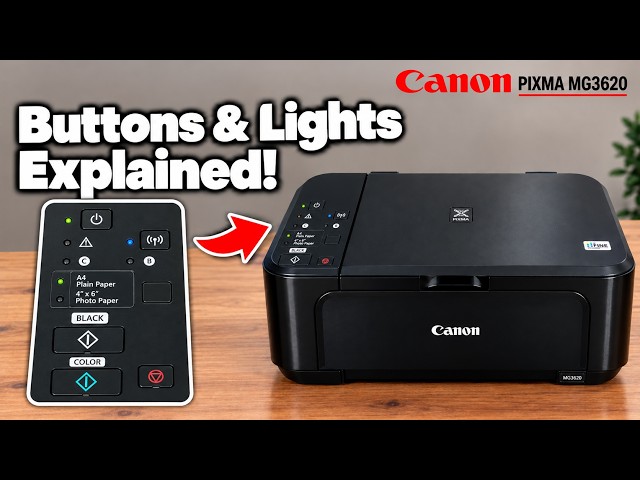
- In the phone or computer print settings, select the size and media type you actually loaded. For an ordinary A4/Letter plain-paper copy from the panel, select the upper Paper lamp.
Check the first sheet
Start the intended print or copy and check that paper feeds straight and exits onto the open support. Loading paper does not itself start a print job.
If the stack does not feed, stop and check the paper condition, tray position and guide pressure. Do not add a larger stack to solve a feed problem or pull a sheet while the mechanism is moving. Use the exact jam procedure if an obstruction is reported.
Questions & troubleshooting
Which side faces down?
The side you want printed faces down in this front tray. Keep the stack in portrait orientation, including supported small photo sizes.
Why can the printer not print with paper loaded?
Check the output tray is open as well as the front input tray. Canon identifies a closed output tray as a condition that prevents printing.
Should I press the guides tightly against the stack?
No. They should touch the edges without bending the sheets. Too much pressure can cause poor feeding.