Before you start
- Complete the printer’s initial ink/head setup. For copying, no phone or network is required.
- For the demonstrated phone and computer app workflows, install Canon PRINT from Canon and have the printer available on the intended connection. iPhone and Windows use different save/export controls.
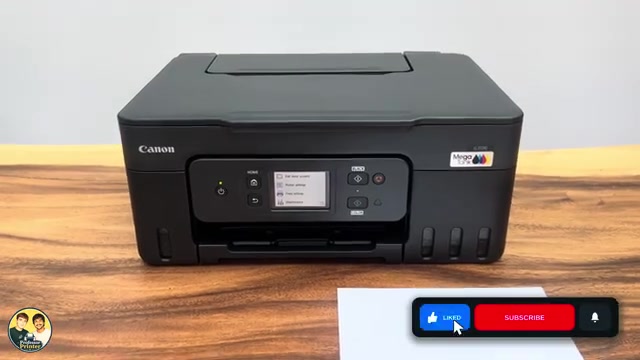
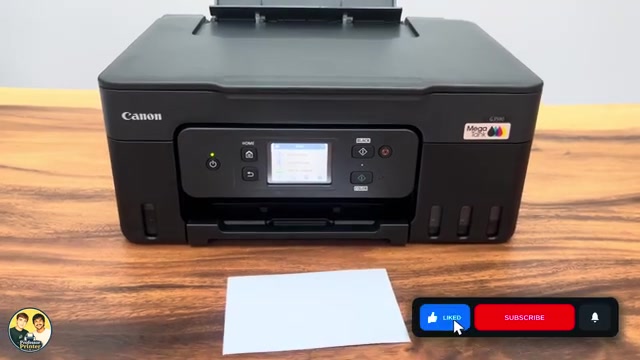
Prepare paper and the original
- Open the rear paper support and load suitable paper in portrait orientation with its printable side up. Keep the stack below the limit mark and adjust the guides without squeezing.
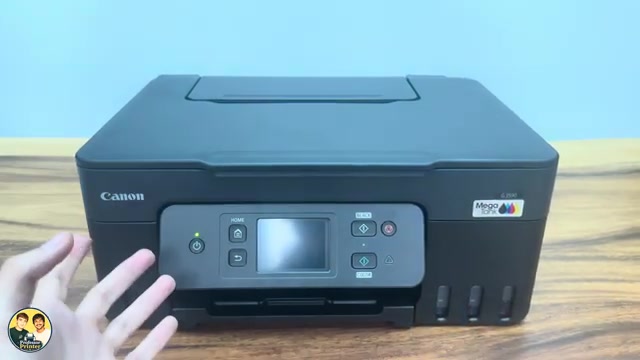
- Confirm the actual paper size and type on the touchscreen, using Change when necessary. Pull out the output tray and open its extension.
- For a document copy or standard-size scan, place the original face down on the scanner glass, aligned with the marked corner. Close the document cover gently.
Use the actual alignment mark rather than the recording’s viewpoint-dependent “up towards the left” description. For automatic detection of a single small photo, Canon instead specifies at least 1 cm clearance from the glass edges. Match placement to the scan mode.
Make a standard copy without another device
- On HOME choose Copy → Standard copy. Set the desired number of copies and check the paper size/type and one-sided layout.
- Press Black for black-and-white or Color for colour. Keep the original still and the cover closed while it scans.
- Wait for the printed page, then check that the intended side and whole document were copied. Remove the original after scanning is complete.
This is a standalone printer function. It does not require a Canon account, a computer or a Wi-Fi connection. The related copy guide covers copy counts and cancellation in more detail.
For two-sided output, turn the originals—not the output sheet
- Use suitable A4 or Letter plain paper. In the Copy standby screen open Settings → 2-sidedPrintSetting → 2-sided → OK. Use Advanced to match the original’s orientation and the required long- or short-side binding; enable Preview if you need to check orientation.
- Load the first original face down and press Black or Color. Follow the preview if enabled.
- After its scan, turn or replace the original with the next side/page face down in the intended orientation and choose Scan. Keep the cover closed during each scan.
- Once the intended originals are scanned, use the screen’s Print now control when offered to finish the set. Let the printer complete both output faces; do not pull the sheet while it returns inside. Check both sides and their orientation.
If you want two separate single-sided copies instead, keep the one-sided layout. The printer does not automatically turn over an original sitting on the scanner glass.
On iPhone, scan and export to Files
- Open Canon PRINT with the intended printer selected and choose Scan. Use Document for a document, then set colour/grayscale and the actual scan size.
- Select Scan and wait for the preview. To add another page or reverse side, place it face down correctly and use the additional-scan control; select Exit when the intended pages are complete.
- Use the result’s share/export button and choose PDF for the document or JPEG for an image. In the iPhone share sheet choose Save to Files.
- Choose a folder, name the file and save it. Open Files and reopen the result to check page count, readability and orientation.
The recording also mentions AirDrop and Mail, which are optional destinations. Android and Windows do not use this exact iPhone share sheet. A preview is not a saved document.
On Windows, scan, edit and save
- With the original positioned as above, open Canon PRINT and select the printer, then Scan. Choose Document or Photo, the actual scan size and the available resolution setting.
- Start Scan and wait for the result. Use Rotate/Crop or Image Correction only as needed; inspect the full border so an edge is not unintentionally removed.
- Choose an appropriate output format. For a multi-page PDF, check the intended pages, Save all pages and the option to save multiple pages to one file when offered.
- Select Save, choose the destination and filename in the resulting save dialog, and finish saving. Reopen the file from that folder to verify the final result.
This separate Windows branch follows the supporting scanner recording and Canon’s current Scan/edit interface. Its brief “press OK” narration is not a substitute for completing the visible Save control and file destination.
On iPhone, select and print a photo
- In Canon PRINT choose Photo Print → Smartphone. Allow access to the photos you intend to use, select the image or images, and choose Add/Next as offered.
- Open Print settings. Match the real loaded photo-paper size and media type, and check the count, orientation and preview.
- Use Borderless only for a supported size/media combination and inspect the crop: the image may extend beyond the sheet. Tap Print and wait for the whole photo to finish.
- Check the output and handle it by the edges. Use the related photo-print guide for the fuller media and cropping explanation.
For documents instead, choose Document Print and select the actual file. Printing and scanning are different actions; choosing a file does not scan a physical original.
On Windows, select the document and finish the job
- In Canon PRINT choose Document Print and select the file you intend to print. Check the page range and orientation in the preview.
- Match paper size/type to the tray, set the desired copy count and choose one-sided or two-sided output as appropriate. For a normal document that turns like a book, choose the offered long-edge binding.
- Confirm the settings and choose Print. Let the printer finish, then check all intended pages, their order and the back-side orientation.
Canon’s G3590 driver supports automatic duplex on A4 or Letter; a drying pause before the reverse side is normal. If you deliberately select Manual 2-sided Printing in the driver, that is a different mode requiring the displayed reload prompt. The source sends its final job but does not establish a completed physical document in that final segment.
If a job or scan does not complete
For the network workflow, check that the printer and device are on the intended network and that Canon PRINT has required local-network permission. For Windows, USB is also a documented connection; Wi-Fi is not the only possible print/scan route. A printer name appearing in the app confirms discovery, not every function or a finished job.
Check a blank copy’s face-down original placement and a missing scan’s selected save folder before assuming hardware failure. Follow the actual LCD error for a printer problem. Do not reset all settings merely because a document was not saved.
Questions & troubleshooting
Do I need Wi-Fi to copy?
No. Standard copying runs at the printer once it is initially set up, with ink, paper and the original in place.
Does a two-sided copy require putting the printed sheet back into the tray?
Not with the documented automatic two-sided output setting on G3590. Turn the original on the glass when prompted; the printer handles the output sheet.
Are the phone and Windows screens exactly the same?
No. Their scan controls overlap, but Windows has its own edit/Save workflow and the demonstrated iPhone uses the iOS share sheet.
How do I know my scan is saved?
Open the chosen folder in Files on iPhone or the selected Windows destination and reopen the file. Check the intended pages rather than relying on the app preview.
Does this work on every MegaTank?
No blanket compatibility is claimed. The written functions and controls are supported for G3590 by its applicable Canon manual.
References
- Professor Printer: source demonstration
- Canon: exact G3590 automatic duplex and functions
- Canon: applicable manual explicitly includes G3590
- Canon: paper orientation, registration and output preparation
- Canon: original alignment by scan mode
- Canon: standard copy controls
- Canon: two-sided copy setting, manual originals and Print now
- Canon: separate Windows and phone Scan interfaces
- Canon: automatic versus manual duplex print modes
- Canon: product interfaces including USB
- Apple: required local-network permission
- Canon: photo printing with Canon PRINT
- Professor Printer: supporting source