Before you start
- Use plain or copy paper suitable for both-side printing and a document app that lets you choose individual pages.
Step 1:Use manual two-sided printing
Epson lists XP-2205 duplex as manual. The printer will not pull a printed sheet back in and turn it over automatically. The source demonstrates a two-page document by selecting one page at a time; this avoids assuming that every phone or computer app offers the same duplex controls.
Step 2:Print page one only
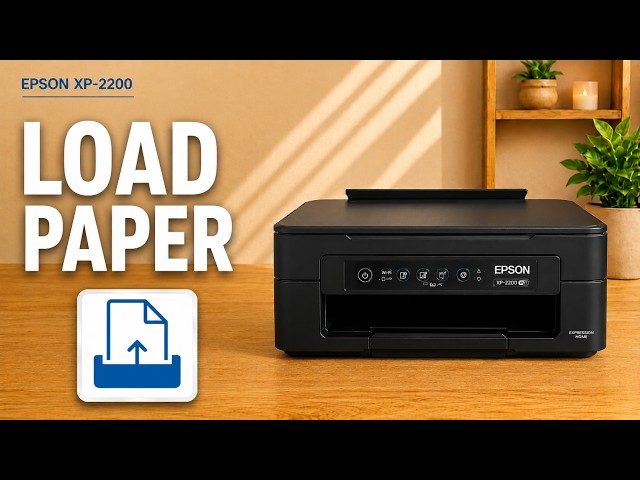
Load a sheet upright in the rear feeder, printable side up, with the edge guide against it and the output tray extended. Open the document’s print dialog, choose the XP-2205 and set the page range to page 1 only. Print and let the ink dry before reloading.
Step 3:Reload with the blank side facing up
Return that sheet to the rear feeder with the blank side facing up. The edge you feed first determines whether the back is upright for your chosen binding. Use the app or Epson driver’s reloading diagram where available, and verify one two-page test before printing a longer document.
The source describes flipping the sheet but does not verbally specify every edge orientation. If unsure, make a small pencil mark on a spare sheet to establish the feed direction, and use the result to reload consistently before printing a longer job.
Step 4:Print page two and check both sides
Select page 2 only in the same document and print. Check that it appears on the previously blank side and is upright when you turn the sheet as intended. Do not send the whole two-page document again, which would repeat page one.
Step 5:Optional: use Epson’s driver prompts
If your Windows Epson driver offers 2-Sided Printing on its Main tab, choose its manual option and follow the reload prompts. Do not select an automatic feature because another model supports it. Epson notes that manual duplex requires EPSON Status Monitor 3 and may not be available for some network or shared-printer configurations. The individual-page method remains useful when your app lacks that option.
Questions & troubleshooting
Will the same phone menu appear as on the computer?
Not necessarily. This method needs a print app with page-range selection. The exact controls depend on that app.
Why does the back print upside down?
The reload orientation and chosen binding edge must agree. Test one sheet before a longer job and keep its feed direction consistent.