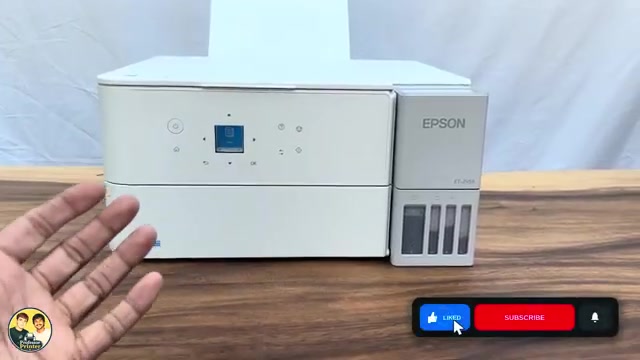
Before you start
- Have the correct printer connected to your computer and a document with at least two pages to test both sides. You do not need a physical two-sided original.
- Use paper supported for two-sided printing. Plain A4 or Letter is a practical starting point; the manual limits some other sizes and media to manual two-sided printing.
Step 1:Open the document’s print dialogue
Open the file and select Print. Check that the destination is your ET-2950 or ET-2959, then review the paper size and page range. The source uses a PDF and opens More settings.
Look for Two-sided or Print on both sides. In the Epson Windows driver, the related control is Main → 2-Sided Printing. Menu wording varies by application and installed driver.
Step 2:Choose how the pages should turn
Enable the appropriate two-sided output and choose the binding edge. For a portrait document, Long edge normally turns like a book; Short edge flips like a top-bound pad. Use the preview and a two-page test if the document is landscape or the intended binding differs.
Neither choice is inherently better. The source chooses long edge for its example; use the edge that keeps your own reverse-side page upright when turned.
Step 3:Print the small test and leave the sheet alone
Choose Print. When automatic two-sided output is selected with supported paper, let the printer complete both sides. The source shows the sheet reversing into the printer to print the other side; do not pull it out during that movement.
If your chosen media or driver setting uses manual two-sided printing, follow the on-screen reload instructions instead. Let the first side dry before reloading. Do not assume every listed paper size or every EcoTank has the same automatic capability.
Step 4:Check orientation, page order and smearing
Take the sheet only after it finishes feeding. Turn it along the intended edge and confirm both pages are present, upright and in the correct order. If the reverse is upside down, change the binding-edge choice and repeat the small test.
For automatic two-sided smears on dense pages, review ink drying time and print density in the related guide. Do not combine borderless output with this two-sided driver route; Epson documents that limitation.
Questions & troubleshooting
Do I need a double-sided original?
No. This prints pages from a computer file on both sides of a sheet. Scanning both sides of a physical original is a different task.
Why is the back upside down?
Check the binding-edge choice against the page orientation and how you turn the sheet. Test two pages before sending a longer job.
Why is the printer asking me to reload paper?
You may have selected manual two-sided output or a media/size combination that requires it. Follow the displayed reload instructions and let ink dry; do not assume the automatic path from the video applies to every paper.