Before you start
- Use a flat envelope size supported by this model, such as the source’s No. 10 example. Do not use window envelopes, exposed adhesive flaps or curled/damaged envelopes.
- Have the address document and the correct Epson Windows driver ready; the document layout must suit the envelope size.
Load one envelope in the rear feeder
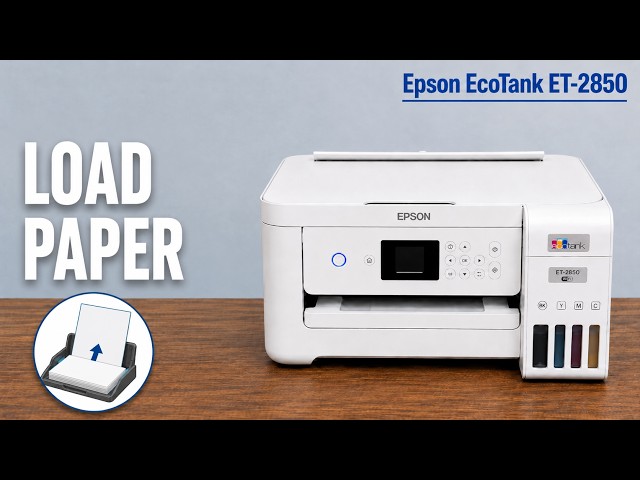
Open the feeder guard and extend the paper support. Move the edge guides apart, then place the envelope at the centre, short edge first and flap facing down, following the feeder’s envelope diagram. Bring the guides lightly to its edges.
Return the feeder guard to its normal stop so it does not press against the envelope, and extend the front output tray. One envelope is a useful first check of orientation and placement before a larger job.
Set the envelope size on the printer
Use the paper-setting prompt, or open Home → Settings → Printer Setup → Paper Source Settings → Paper Setting. Choose the size you actually loaded and the Envelope paper type. The source uses No. 10; do not select it for a different envelope.
No. 10 envelope and Letter paper are different sizes. Match the physical item rather than choosing a familiar-looking name.
Match the Epson driver settings
Open the file’s Print command and choose this printer. If the application hides the Epson controls, use its system print dialogue or printer properties/preferences. On the Epson driver’s Main tab, choose the envelope under Document Size and Envelope under Paper Type. Check the remaining layout settings, confirm OK and print.
The source’s application uses More settings before reaching the system dialogue. That wording can differ between applications; the important fields are the exact envelope size and media type.
Inspect the finished envelope
Let the envelope finish feeding, then check the address placement, orientation and any smears. The recording discusses black lines but does not establish one setting that fixes every cause. First recheck the envelope condition, loading direction and matching media settings.
For continuing smears, use Epson’s paper-path and print-quality troubleshooting for this model. Do not repeatedly reduce density or run head cleaning without identifying the actual symptom.
Questions & troubleshooting
Can I follow this with Letter-size paper?
Use the ordinary paper-loading guide and Letter settings for Letter paper. The demonstrated item here is a No.10 envelope.
Does this prove every Epson accepts the same envelope?
No. These instructions are scoped to ET-2856 and ET-2850. Other models need their own supported-media and loading instructions.