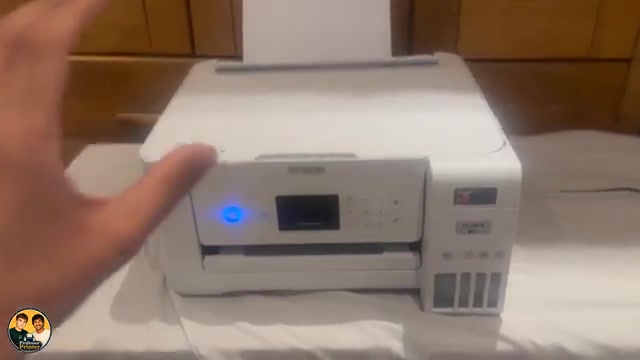
Before you start
- Load suitable plain paper and extend the output tray. Have the original ready for the scanner glass.
- For the phone method, Epson Smart Panel must already be connected to this printer. You do not need the app for control-panel copying.
Step 1:Place the original on the glass
Open the document cover. Put the side you want to copy face down against the corner mark on the scanner glass, then close the cover gently. The video copies a printed picture; keep the original flat so the whole intended area is scanned.
Step 2:Choose Copy on the printer
- Press Home, use the arrow buttons to select Copy, and press OK.
- Set the number of copies and choose colour or monochrome. For a first check, make one copy.
- Press OK to inspect the print settings. Match the paper size and type to the paper actually loaded, then confirm.
- Press the Start button to begin the scan and print. Leave the document cover closed while scanning.
Step 3:Alternatively, start the copy in Smart Panel
Open Epson Smart Panel with this printer selected. Choose Copy, then the normal document option shown in the recording. Check the colour, density, size and paper settings; choose Start when they match your intended copy.
This sends a copy job using the original on the printer’s glass. It is not a scan saved to your phone. Keep the original in place until the scan finishes.
Step 4:Check the finished copy
Let the paper finish emerging before picking it up. Check that the correct side of the original was copied, the orientation is right and the desired content fits. The presenter reports completed copies from both the control-panel and Smart Panel methods.
If part of the page is missing, check the glass corner placement and paper-size settings before repeating. A copy need not have exactly the same colour or border as the original.
Questions & troubleshooting
Do I need Wi-Fi just to make a copy?
The control-panel method uses the original on the scanner glass and does not require a connected phone. The Smart Panel method requires the app’s printer connection.
Why did I get a blank copy?
First check that the printed side of the original faces the glass. If placement is correct but the output remains blank, investigate print quality rather than repeatedly copying the same page.