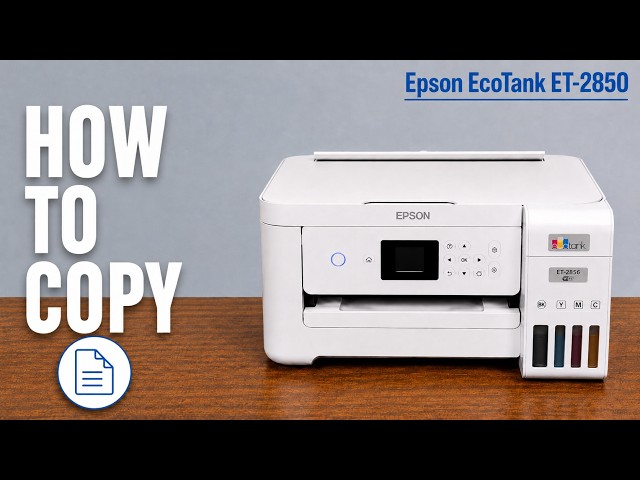
Before you start
- Use flat, supported paper of one size and type. Keep the printer level.
Step 1:Extend the rear paper support
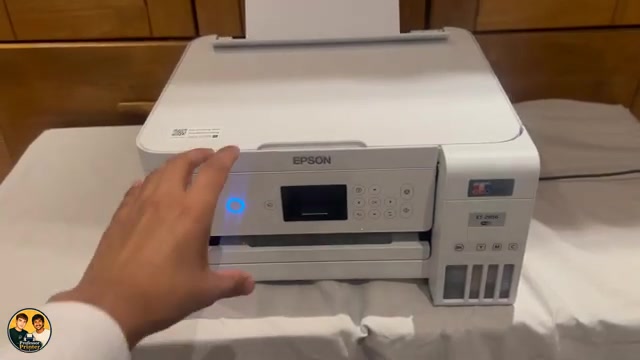
Open the feeder guard at the back and pull up the paper support. Tilt the support back into its working position. Slide the edge guides apart before inserting paper; there is no need to rotate the printer as the presenter does for the camera.
Step 2:Centre the paper between the guides
Insert the paper with its printable side facing up and its short edge entering first. Keep the stack centred and below the fill mark on the guide. Let it rest in the feeder without forcing it down.
Bring the guides against the edges of the stack without bending or squeezing it. Adjust them again when changing to a smaller sheet size.
Step 3:Set the matching paper size and type
Return the feeder guard to its normal stopped position without pressing it against the paper. On the printer’s paper-setting prompt, confirm the actual size and type; use Change if the displayed values are wrong. Extend the output tray.
When sending a print job, select the same paper size in the app or printer driver. A4, A5 and Letter are separate choices.
Step 4:Check the paper before printing
The stack should sit straight, supported at the back, with the guides touching its edges. Send the intended print job only after checking the settings. The recording demonstrates loading and changing the paper setting; it does not show a completed print.
Questions & troubleshooting
How tightly should the guides fit?
They should meet the paper edges without bowing the stack. The purpose is to keep the sheets straight, not clamp them.
What if paper jams?
Stop the job and use the model-specific paper-jam guide. Do not follow the recording’s suggestion to rummage inside the printer.