Before you start
- Use photo media supported by these models and follow its printable-side and handling instructions.
- Have the correct Epson printer driver if the application does not expose the needed paper controls.
Step 1:Start with the actual paper
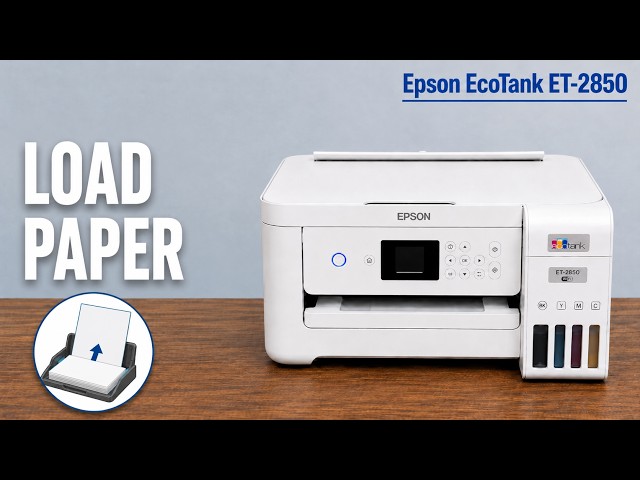
Open the feeder guard and extend the rear paper support. Load the supported photo paper in the rear feeder, printable side facing up, with the edge guides against its sides. Return the feeder guard to its normal stop without pressing on the paper, then extend the output tray. Select settings for that physical media rather than treating all glossy, semi-glossy and matte paper as interchangeable.
Step 2:Match the printer’s paper setting
Use the paper-loading prompt, or open Settings → Printer Setup → Paper Source Settings → Paper Setting. Select the actual size and corresponding paper type.
Epson’s manual provides separate settings for its glossy, premium glossy, semi-glossy and matte papers. Match your media to its documented setting rather than leaving Plain paper selected for photo media.
Step 3:Match the Windows print settings
Open the photo’s Print command and select this printer. Open More settings or the printer’s Preferences/Properties as available. Match paper size and media type, then choose the quality level appropriate to the photo job.
The source selects Best in its Windows dialogue. The Epson driver may use different labels. A higher quality selection cannot compensate for incorrect paper type, a poor source image or missing nozzles.
Step 4:Inspect a small print before repeating the job
Check the preview for cropping, orientation and fit, then print one photo. Let it finish and handle it according to the paper instructions. Compare the output for detail, smears and unwanted cropping.
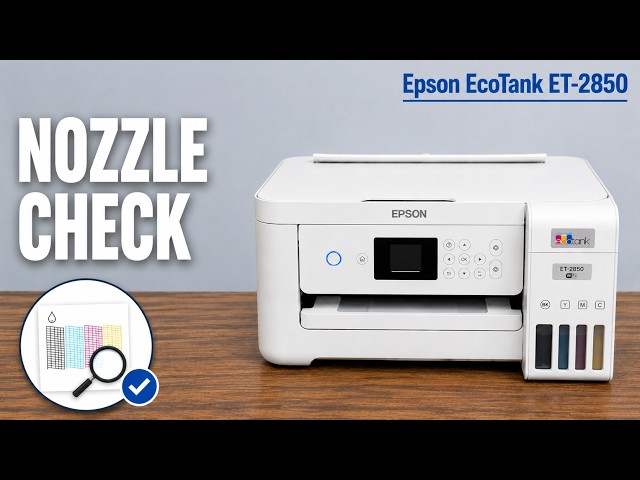
If the print has missing colour or broken lines, inspect a nozzle pattern before running cleaning. If the pattern is complete, return to the image and paper settings instead of repeatedly cleaning the head.