Before you start
- A two-sided original and paper for the copies.
Copy each side in a separate pass
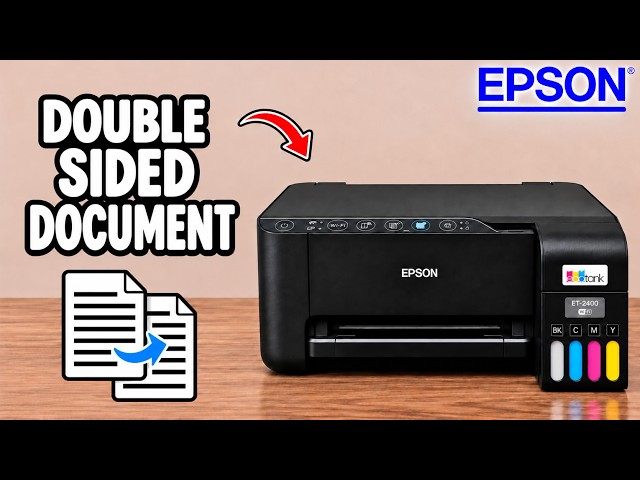
A double-sided copy uses two copy operations. After the first, reload the printed sheet and flip the original on the scanner glass before making the second copy.
Step 1:Position the first side on the glass
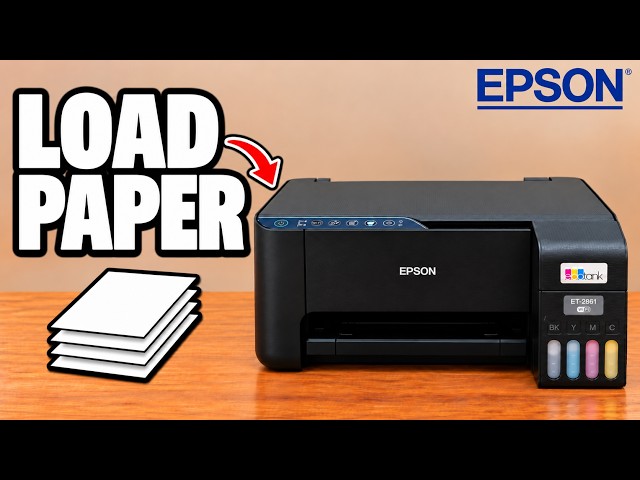
Put the first side of the original face down. Align its top corner with the marked arrow on the scanner glass and close the lid. Load plain paper in the rear feeder.
Step 2:Copy the first side
Press the black-and-white copy button for a monochrome copy or the colour copy button for colour. Press it the number of times needed for multiple copies. Wait for the first-side sheets to come out.
Step 3:Reload the first-side sheets
Turn the copies over and put them back in the rear feeder with the printed side facing down and the top edge entering the printer first.
Step 4:Turn the original over and copy again
Open the scanner lid and flip the original to its second side. Keep the same top-edge orientation against the alignment mark. Close the lid and use the same copy button and copy count for the second pass.
Check the completed two-sided copy
Look at both sides of the output and check their orientation. For a different paper size or media type, use the copy settings in Epson Smart Panel so the settings match the paper.
Questions & troubleshooting
Is this automatic duplex copying?
No. You turn over the original and reload the output paper yourself between the two copy passes.