Before you start
- Supported photo paper, a source image and an established Canon PRINT printer connection.
Step 1:Load supported photo paper and register its size
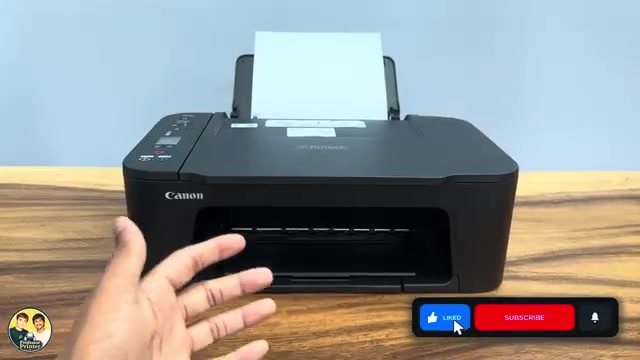
Check that your photo paper’s type, size and weight are supported by this exact printer. Load it vertically in the rear tray with the printable surface facing you, fit the guide gently and extend the output tray. Keep within the paper’s load limit.
Use Paper Select to choose the size actually loaded and confirm with OK. Do not choose A4 merely because that is the default or assume arbitrary media will work. Canon lists borderless sizes of 10 × 15, 13 × 13 and 13 × 18 cm for TS3750i; A4 is not in that borderless list.
Step 2:Match the app to the actual paper
In the recorded Windows Canon PRINT interface, open Photo Print and select the image. Set the page size to match the sheet and choose the media type that matches its coating. These settings affect how the printer handles and applies ink to the paper.
Choose High print quality when that option is available and appropriate for your photo. The source demonstrates these selections but does not establish that High solves every colour, sharpness or paper problem. Available options depend on the media and software.
Step 3:Check a preview and one physical sample
Review the crop, orientation and margins in the app before printing. Send one photo with the selected settings, allow it to finish and check whether the image fits as intended and the surface is free from smears.
The recording ends after discussing settings; it does not demonstrate a completed photo print. A test on your actual paper is needed to assess the result. If colour is uneven, check the correct media selection and the printer’s nozzle pattern before repeatedly changing unrelated settings.
Keep the software and quality claims in scope
The video’s title calls these the best settings, but its content is a basic paper/media/quality setup. Its claim that these are the only controls available is not established for every application or driver. The Windows sequence is not a guarantee of identical phone menus.