Before you start
- Use A4 or Letter plain output paper and an original that fits the scanner glass. This standalone copy does not require a phone, computer or Wi-Fi connection.
Step 1:Load paper and select two-sided copying
- Load plain A4 or Letter paper centrally in the front tray, print-side down and portrait orientation. Adjust the guides, register the matching size and Plain paper, and open the output tray, support and extension.
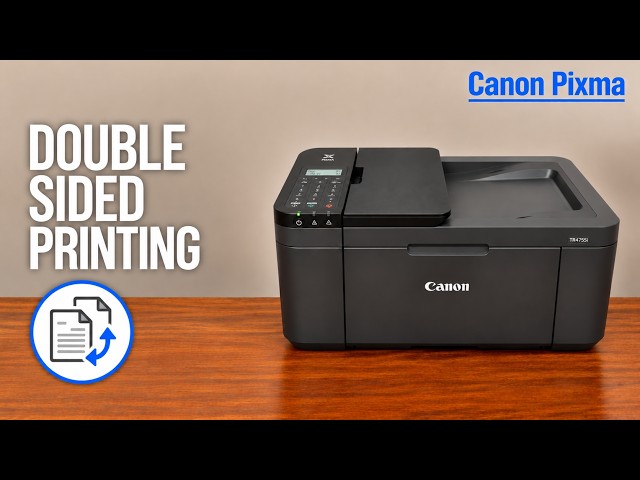
- Press COPY, then Menu/Wireless connect. Use the arrow controls to select Special copy and press OK. Select 2-sided copy and press OK.
- Check the copy quantity; start with one copy. In the Copy menu, check size, media and 2-sided ON. Set Stapling side to match the way you want to turn the finished sheet.
The source makes two copies, but two is not necessary for two-sided output. Copy quantity means how many finished copies to produce.
Step 2:Scan the first side on the glass
- Leave the document feeder empty. Open the document cover and put the first side face down on the glass, aligned with the marked corner.
- Position the top of the original consistently with the chosen orientation and binding; Canon’s linked two-sided-copy diagrams show the portrait and landscape choices. Close the cover gently.
- Press Black for a monochrome copy or Color for colour. Keep the original and cover still while the first side scans.
Step 3:Respond to Scan next page
- When the LCD asks Scan next page, open the cover and turn the original so its other side faces the glass. If using two separate originals, replace it with the next original instead.
- Align that side with the same marked corner, checking its top and the intended binding orientation. Close the cover gently.
- Press OK to scan the second page. The printer can then produce the two-sided output.
Do not press Black or Color repeatedly to create extra jobs. Wait for the actual next-page prompt and confirm the second original as shown in the recording.
Step 4:Wait for the finished sheet and check it
The first printed side may emerge before the sheet is pulled back in. Leave it alone until both sides are complete and the sheet is ejected.
Turn the sheet along the chosen binding edge and check both sides and their orientation. The presenter reports a correctly oriented result; confirm your own copy before making a larger batch.
Questions & troubleshooting
Do I need the Canon app for this?
No. This is a standalone copy made with the printer’s controls and scanner glass.
Does two-sided copying mean two copies?
No. It places two scanned pages on opposite sides of one sheet. The separate copy quantity determines how many finished sheets to make.
Why does it ask me to scan another page?
The glass scans one side at a time. Place the next side or original face down, close the cover and press OK when prompted.
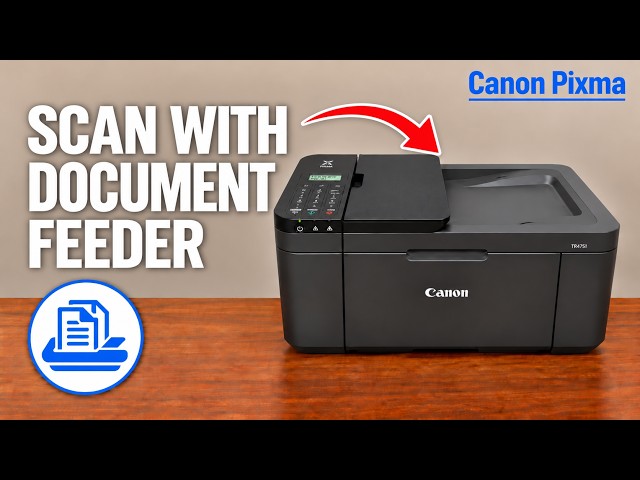
Can the ADF automatically read both sides?
No. Canon says this feeder does not automatically scan both sides of an original. Use the glass procedure here, or a supported manual two-pass scanning workflow in the computer app.
References
- Professor Printer: source demonstration
- Canon: two-sided-copy selection and binding diagrams
- Canon: copy settings and quantity
- Canon: making copies and scanning precautions
- Canon: glass positioning
- Canon: ADF cannot automatically scan both sides
- Canon: output paper loading
- Canon: applicable manual explicitly lists TR4720 and TR4755i