Before you start
- The printer must already be installed and available on your Windows computer. Have a two-page document and A4 or Letter plain paper for a first check.
Step 1:Prepare the paper and output path
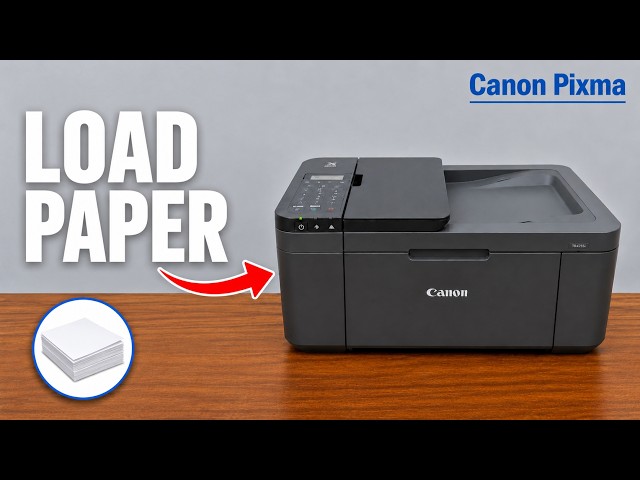
- Load plain A4 or Letter paper centrally in the front tray, portrait orientation and print-side down. Adjust the guides without bending the stack; keep it below the tabs.
- Register the actual paper size and Plain paper on the printer’s LCD. Match those settings in the print dialog.
- Open the paper output tray, pull out its support and open the extension before starting.
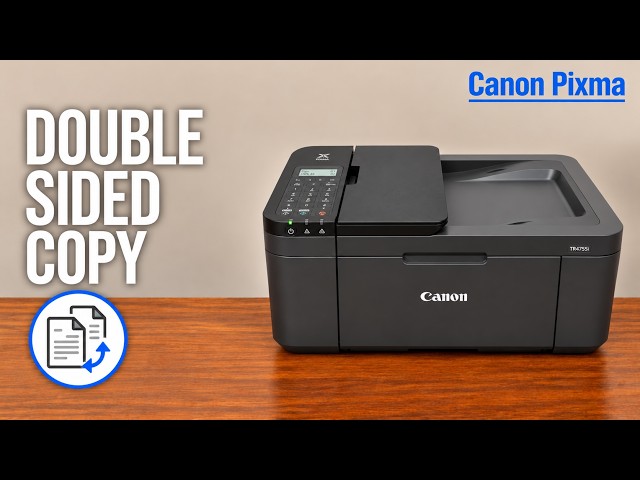
Canon permits automatic duplex with A4 and Letter in this driver. Do not assume that selecting two-sided output makes every other size suitable.
Step 2:Select both sides and the binding edge
- Open the document’s Print dialog and select your intended Canon printer. For a first check, choose one copy and both document pages.
- In the recorded Windows dialog, expand More settings and select Print on both sides. Choose the binding edge you intend to turn: long edge for a usual portrait book-style document, or short edge when that suits your layout.
- If your app instead opens Canon’s printer-driver settings, go to Page Setup, enable Duplex Printing and leave Automatic checked. Choose the appropriate Stapling Side.
- Check the preview, paper size, orientation and page range, then confirm the driver with OK if it is open and click Print.
The Canon driver can make the printable area slightly narrower for duplex. If an edge would be clipped, inspect Print Area Setup and the reduced-printing option before sending the job. The source’s More settings layout is one application example, not a universal Windows menu.
Step 3:Let the printer complete both sides
After the first side, the printer may pause for ink drying and draw the sheet back in. Do not remove, turn or push that sheet. Wait until the completed sheet is fully ejected.
Check that both intended pages are on one sheet, that the second page is upright when turned along the selected edge, and that the copy count is correct. The presenter reports an extra copy at the end; that is a reason to check the job’s copy count, not a required duplex step.
Questions & troubleshooting
Must I turn the sheet over myself?
Not with automatic duplex enabled. Leave the sheet alone while the printer reverses it. Manual duplex is a different driver choice and gives a reload prompt.
Why does the printer stop after the first side?
Canon documents a drying pause before the second side. Do not touch the sheet during that interval.
Why is the back upside down?
Check the document orientation and binding edge. Print one two-page test with the intended long- or short-edge setting before a larger job.
Can I use a different paper size for automatic duplex?
The applicable Canon Windows driver limits automatic duplex to A4 or Letter. Do not override the size registration to make another sheet appear compatible.