Before you start
- Have the printer connected to your home network and your iPhone on the same network. Install Canon PRINT from the App Store, checking that Canon is the publisher.
- This guide uses the glass. Remove originals from the document feeder and use a document that fits the glass.
Step 1:Add the printer and place the original
- Open Canon PRINT, review its terms and permission prompts, then search for available printers and select your intended printer. Allow Local Network access when iOS requests it so the app can communicate with the printer.
- If the printer is not found, check that it is on and both devices are on the same network. Complete the related Wi-Fi setup before continuing.
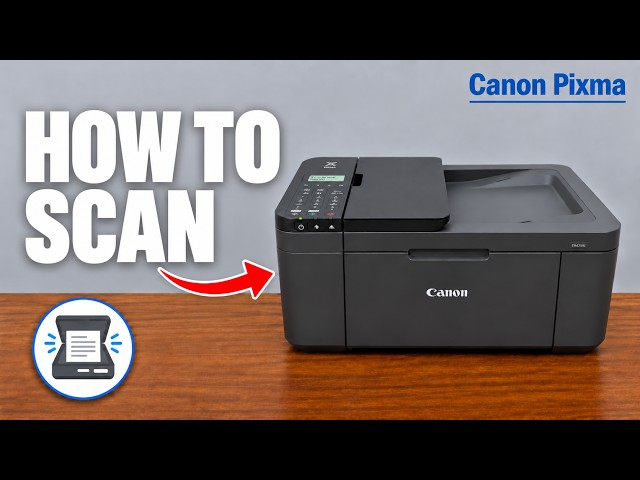
- Open the document cover. Put the document face down on the glass, aligned with the marked corner for a standard-size document scan, then close the cover gently.
Do not identify the app by the source’s changing review count. Optional usage-data choices are different from permissions required for discovery. The recording’s allegation about selling data is not established here.
Step 2:Select the scan settings and scan each needed side
- In Canon PRINT select Scan. Choose Document for a document, select the glass/platen source where offered and match the original’s size and colour or grayscale setting.
- Select Scan and confirm the prompt if shown. Keep the original and cover still until the preview appears.
- For another page or the reverse side, choose Continue, replace or turn the original so the next side faces down, align it and close the cover. Start the next scan.
- When all intended pages are present, select Exit to finish scanning and review the results.
The glass reads one side at a time. Calling this a two-sided scan does not make the original turn over automatically. Available settings depend on the app version; the source’s limited menu is not a universal resolution specification.
Step 3:Export the scan and confirm the saved file
- Use the result screen’s share/export control. Choose PDF for the document or JPEG when an image file is appropriate.
- In the iPhone share sheet choose Save to Files, pick a folder, name the file and confirm Save. Other available destinations, such as AirDrop or Mail, are separate choices.
- Open Files, go to the selected folder and reopen the saved file. Check that the expected pages are readable and oriented correctly before discarding the scan preview.
This export flow follows the iPhone choices described in the source. Canon PRINT also exists on Android, but its permission and file-sharing screens are different; those screens are not treated as identical here.
Questions & troubleshooting
Can I scan without joining my home router?
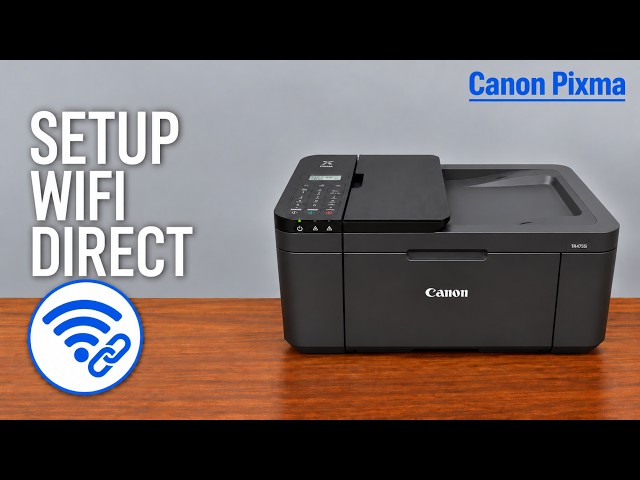
Canon also supports a separate Wireless Direct connection, but the phone must actually join the printer’s direct network. The recording’s “no Wi-Fi setup needed” remark does not mean scanning needs no connection. Use the related Direct guide for that route.
The app cannot find the printer. What should I check?
Check power, the same home network and iOS Local Network permission for Canon PRINT. Complete Wi-Fi setup if the printer has not joined that network.
Is seeing the preview enough to save my document?
No. Export it to Files or another chosen destination and reopen the saved file to confirm it.
Can I copy these exact sharing steps on Android?
The demonstrated share destinations are iPhone features. Android uses its own sharing and storage controls.
References
- Professor Printer: source demonstration
- Canon: current mobile Canon PRINT scan workflow
- Canon: communication checks for phone scanning
- Canon: glass positioning by original type and scan size
- Apple: local-network permission for nearby-device access
- Canon: Wireless Direct is a separate actual connection
- Canon: applicable manual explicitly lists TR4720 and TR4755i