Before you start
- Use compatible photo paper in a size supported by the printer and your chosen borderless or bordered mode. Read the paper package for its printable side and media type.
- For Windows, have the intended Canon printer installed. For iPhone AirPrint, connect the phone and printer to the same Wi-Fi network.
Step 1:Load and register the actual photo paper
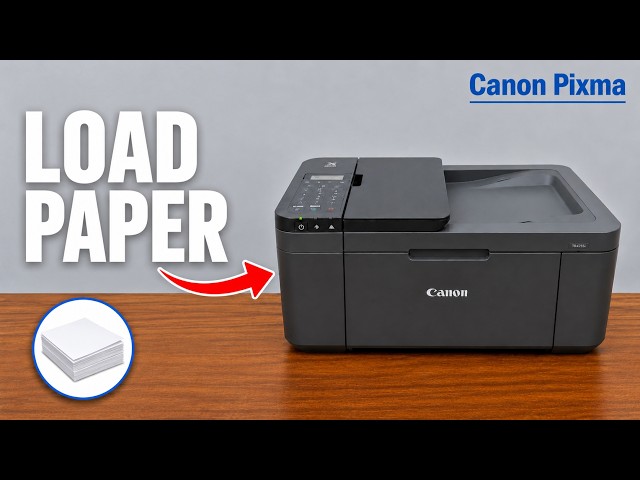
- Open the front cover and extend the paper support. Slide the guides outward, then insert the photo paper centrally in portrait orientation with its printable side down.
- Push the paper to the back of the front tray until the loading signal sounds, then bring the guides to its edges without squeezing. Keep the stack below the guide tabs.
- On the LCD press OK and select the actual paper size, then the matching media type, confirming each choice. Matte and glossy paper are different settings.
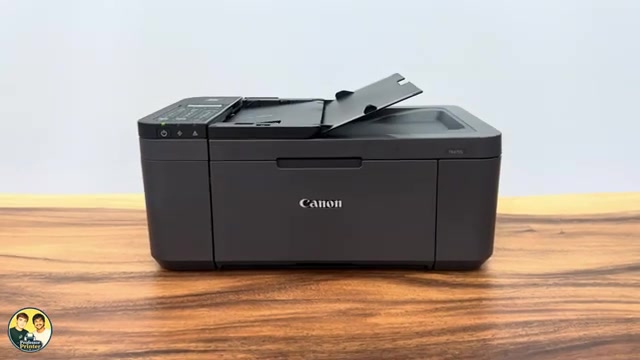
- Open the output tray, pull out the paper output support and open the extension before printing.
The source’s A4 matte example is one paper choice. Use the size and type actually loaded, rather than copying that example for every photograph.
Step 2:On Windows, match the print settings
- Open the photograph in your preferred application and choose Print. Select the intended Canon printer.
- Open More settings or the printer’s preferences, depending on the application. Set the same paper size and media type registered on the printer.
- Choose High output/print quality when offered for that media. Inspect the preview and orientation.
- If you want borderless output, select it only for a supported size and media combination. Check the preview for cropped edges before confirming and printing.
Step 3:On iPhone, print through AirPrint
- Open the photo and use its Share or Actions menu, then choose Print. Select your intended printer.
- Check the paper size and the media/quality choices actually offered. Match the loaded paper and choose a suitable quality level; available controls depend on the app and printer.
- Check the preview and copy count, then tap Print. Keep the output path open while the sheet finishes.
This is an alternative to the Windows step. The supporting source uses AirPrint on A4 matte paper. It does not establish that AirPrint and Canon PRINT always expose identical settings.
Check the finished print and interpret the extra setting
Let the finished sheet settle and handle it by its edges. Check the crop, correct side of the paper and whether the selected media matches the package. The settings source stops at sending the job; the supporting presenter reports a completed enlarged A4 photo and says it took about five minutes. That is one reported result, not a timed performance test by printertutorials.com.
The optional panel setting is Setup → Device settings → Print settings → Auto photo fix set. Canon says enabling it prioritizes Exif information recorded in an image. It is not a sensor that identifies the paper you loaded, and it does not replace correct paper-size and media-type settings.
Questions & troubleshooting
Does Auto photo fix detect glossy or matte paper?
No. Canon describes it in terms of image Exif information. Register the actual paper type yourself and match it in the print dialog.
Why did borderless output cut off part of the photo?
Borderless mode enlarges the image beyond the sheet. Check the preview or use a bordered print when retaining the whole composition matters.
Should every photo take five minutes?
No. That is the supporting presenter’s approximate observation for one enlarged A4 print at a high quality setting, not a guaranteed runtime.
Do I need to follow both device workflows?
No. Use either the Windows or the iPhone branch for the device sending the job.
References
- Professor Printer: source demonstration
- Canon: photo paper loading, registration and output support
- Canon: Auto photo fix uses Exif information
- Canon: borderless cropping and supported media restrictions
- Apple: current AirPrint steps and same-network requirement
- Canon: applicable manual explicitly lists TR4720 and TR4755i
- Professor Printer: supporting source