Before you start
- Install the genuine Canon PRINT mobile app from the applicable store and complete registration of the intended printer. Check current app/OS requirements.
- For this MG3600 workflow, use the connection already configured for the printer. App tiles and prompts can vary; a feature shown for one Canon model does not certify it for every Canon printer.
Step 1:Start with the selected printer
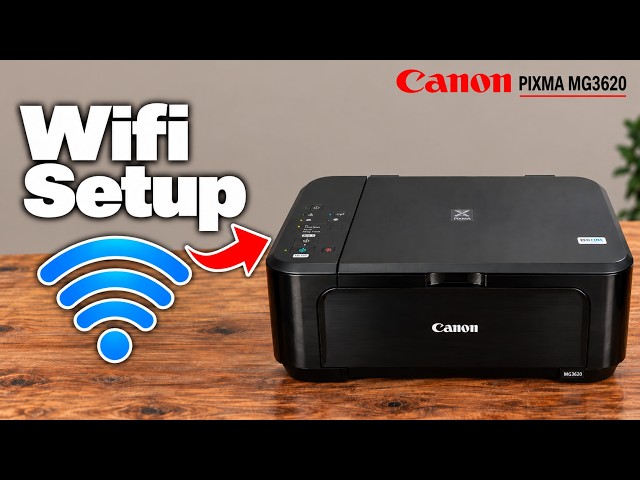
Open Canon PRINT and check the printer card at the top before choosing a task. If it names a different printer or none is registered, use Add/Switch or the registration flow and complete the related Wi-Fi setup guide first.
Allow the local-network permission needed for discovery. Distinguish that from optional usage-survey choices. Identify the genuine app by its publisher and official model support, not by a claimed number of five-star ratings.
Step 2:Photo Print and Document Print use files already on the phone
Choose Photo Print for an existing image, add the intended images and tap Next. Review Print settings before sending: paper size/type must match the physical sheets, and copy count, colour and any offered borderless option must suit the job.
Crop or adjust the preview if needed, then load supported paper print-side down in the MG3600 front tray and open the output tray/support. Tap Print and check the actual page. Document Print is a separate choice for supported files; the video’s photo demonstration does not establish every document format.
Step 3:Scan uses the printer’s glass
Choose Scan when the original is on the printer. Place it face down at the glass alignment mark and close the document cover. Set document/photo type, colour and original size, then start Scan.
After the first page, replace or turn the original and choose Scan again for another page in the same document. Choose Exit when finished, inspect the previews and use the share/save control. Select PDF for a multipage document or the offered image format as appropriate. Finish saving to a chosen destination and open the file to verify all pages.
The recorded phone uses iPhone sharing options. Android destinations are not claimed to be identical. The related print/copy/scan guide expands the page-by-page and Windows workflows.
Smartphone Copy, Scan and Copy are different choices
- Smartphone Copy captures an original with the phone’s camera. The recording takes a picture, adjusts the detected edges and taps Next. Check the resulting preview; this is not a scan made by the printer’s glass.
- Scan reads the original on the printer’s scanner and returns a digital file. Use it when that is the result you need.
- Copy requests paper output from a scanner original. In the recorded app screen, choose the offered copy count/settings, load matching paper and select Black Copy or Color Copy. The local panel’s Black/Color buttons provide the separate documented plain-paper copy route.
The camera segment stops at its document preview rather than demonstrating a completed printed camera copy. Do not assume the recorded preview proves the output quality of every camera or printer.
Use printer information and maintenance deliberately
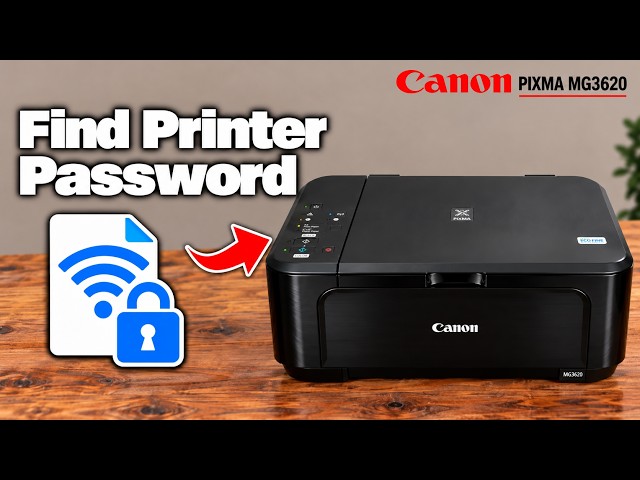
Tap the printer card to find Printer Information or Utilities. On the demonstrated MG3600-family route, a browser page may open and request the printer’s administrator password. Use the current credential for your printer; the separate password guide distinguishes default, current and direct-network passwords.
Opening Utilities is not a reason to run every cleaning command. Use a nozzle check to diagnose missing lines and follow the task-specific cleaning/alignment guide, including its ink consumption and limits.
Cloud, subscription and creative tiles can depend on account, region, model and current service availability. The video merely mentions some of these; this guide does not promise an automatic email-to-print service or instruct you to create an account.
Questions & troubleshooting
Does Canon PRINT give every Canon printer every feature?
No. Supported models, connections and available controls differ. This guide’s supported printer tasks are scoped to MG3620/MG3650 and their applicable Canon manual.
Is Smartphone Copy the same as scanning on the printer?
No. Smartphone Copy starts with the phone camera; Scan uses the printer’s glass. Check which capture method you intended before proceeding.
Why does Utilities ask for a password?
The app can open the printer’s protected information/settings page. Use the current administrator password; do not enter the router key simply because the page is reached over Wi-Fi.
Does a scan preview mean the document has been saved?
No. Complete the selected share/save destination’s action and open the resulting file to verify it.