Before you start
- For phone or Windows tasks, connect the ET-2400 to that device first. The paper-copy route works at the printer.
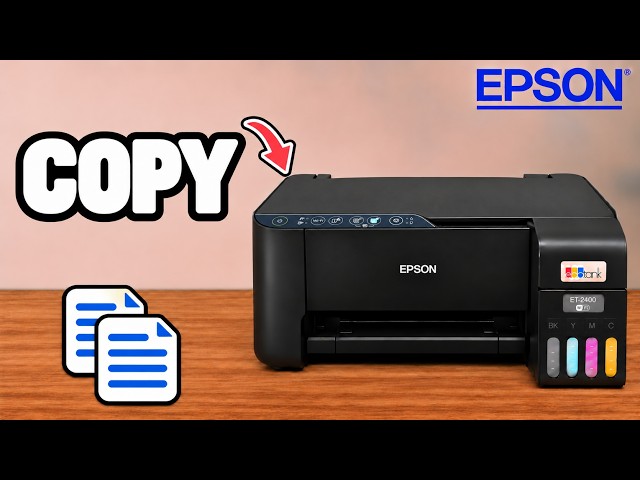
Make a paper copy without a phone or computer
Load blank paper. Lift the scanner lid and place the printed side of your original face down, with the top aligned to the arrow at the right-hand corner of the glass. Close the lid. Press the black-and-white or colour copy button once for one copy, or twice for two copies. Your copy comes out of the front output tray.
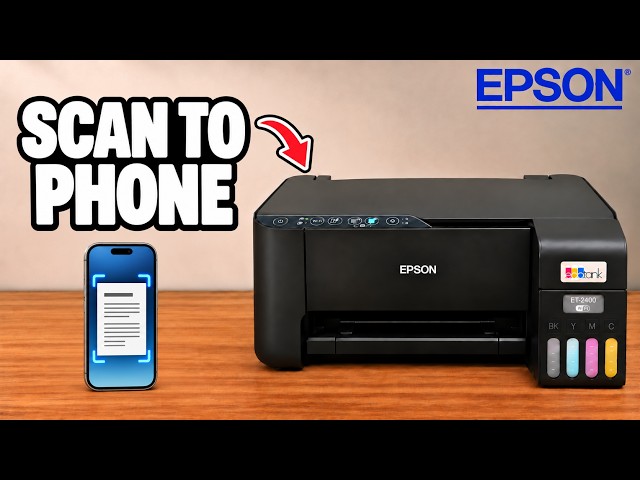
Watch this section at 0:27Save a scan to your iPhone
Select the connected ET-2400 in Epson Smart Panel and open Scan. Place the original face down as for a copy. Choose the document size, colour mode, resolution and file format, then tap Start. Check the preview. You can crop or rotate it before saving.
For another page, put the next side on the glass and tap the plus/Scan control. When the document is complete, tap Next, name the file and choose Save. Select the folder you want to use, such as a folder in iCloud Drive.
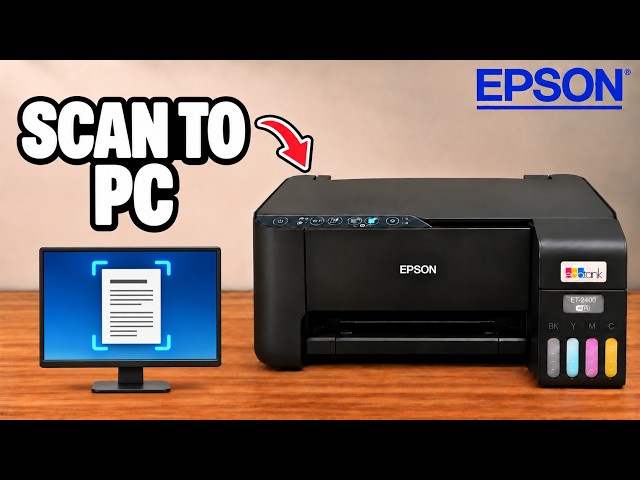
Watch this section at 2:06Scan to a folder on Windows
Open Epson Scan 2 on the computer connected to the printer. Choose Document Mode for paperwork or Photo Mode for a photograph. Select the output format and folder before you scan. If you need to capture additional pages, enable the option to add pages and use Add after each scan. Choose Save when you have the pages you need.
Watch this section at 3:39Print a PDF from Windows
Open the PDF and press Ctrl+P to see the print preview. Check the destination before sending the job. If your Epson is missing from the initial list, use See more to look for it. Select the ET-2400, check the settings and choose Print.
Watch this section at 4:57Print a photo or document from your iPhone
In Epson Smart Panel, tap Print and choose photos or documents. For a photo, tap Add, choose your picture and confirm Add. Select the paper size and media type to match what is loaded, choose the print quality, then tap Done and Print.
Watch this section at 6:09